Install Claude Code
The terminal that builds things for you.

npm install -g @anthropic-ai/claude-code
Claude Code is Claude in your terminal (the window where you type instructions instead of clicking them). Same plain language conversation, except this one can read your folders, write real files, and build a working project while you watch.
Why this matters
Chat Claude can tell you what to do. Claude Code does it. Without it, every file sits on the far side of a copy and paste. You are the one carrying it across. With it, you describe what you want and the thing appears on your computer, in a real folder, ready to open.
- You copy the code out of the chat
- You guess the filename
- You guess which folder it belongs in
- You paste it in and hope
- You describe what you want
- Claude names the file
- Claude puts it in your folder
- You approve once and read the result
Before and after
- You describe it once and the files appear.
- Claude reads your folder and answers about it.
- Nothing is written until you approve it.
- Claude writes the code, you paste it by hand.
- You never know which file it belongs in.
- "Build me a website" stays a nice idea.
Drag to compare
"The files appear" is literal. Here is what lands in an empty folder the first time you try it. index.html is the page. style.css is how it looks. README.md tells you how to open it.
my-project
├── index.html
├── style.css
└── README.md
What you need
- A free Claude account. If you do not have one, do the Install Claude lesson on loop.sv-academy.org first.
- A terminal. Your computer already has one.
- A free tool called Node.js, from nodejs.org
- About twenty minutes
Two lines tell you what is already on your machine. Type them in your terminal and press Enter.
node -v
npm -v
v22.11.0
10.9.0
Your numbers will be higher than these, and that is fine. If you get command not found instead, Step 1 is the one that fixes it.
Steps
Install Node.js
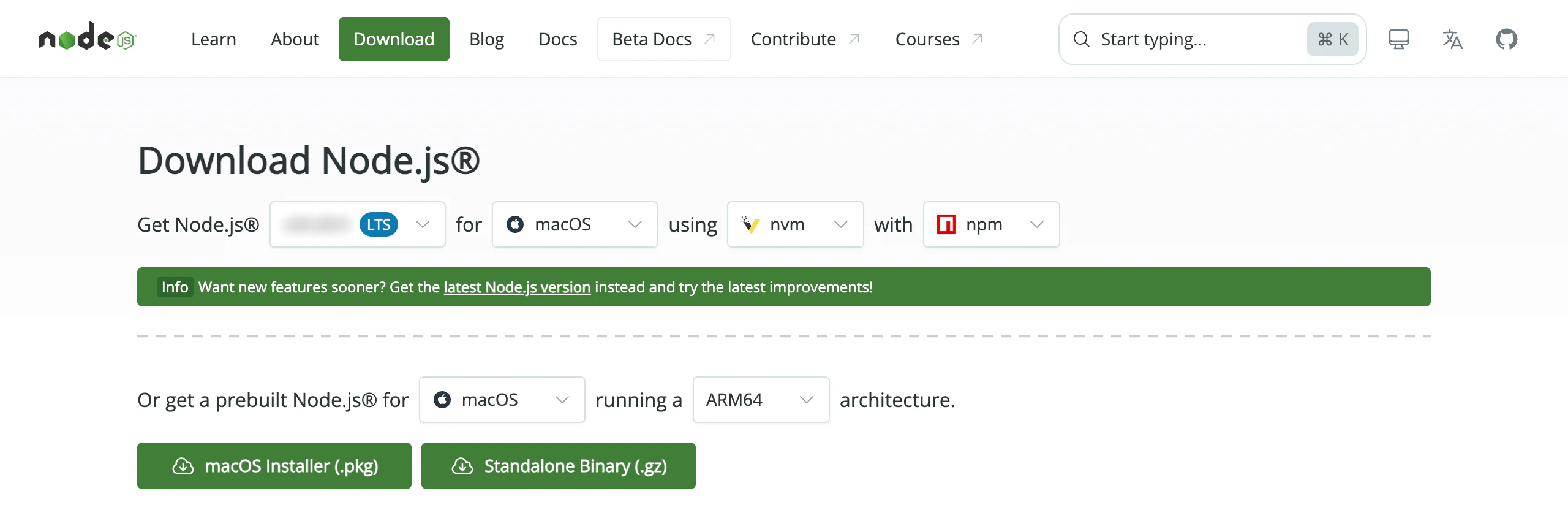
This step gets you the plumbing Claude Code runs on. Node.js is free and comes from nodejs.org, the official source. Take the version marked LTS (long term support, the boring stable one). Pick your own operating system, then run the installer and click through it. Nothing to configure, nothing to choose.
 1234
1234- 1The blue LTS badge. The badge is what you check, not the number beside it.
- 2The operating system picker. Make it match the computer in front of you.
- 3A link to the newest version. Not that one, not today.
- 4The installer button. macOS hands you a .pkg file, Windows hands you a .msi file.
You should now have Node.js on your computer. Open a fresh terminal window, type node -v, and a version number prints back.
If not: If it still says command not found, close every terminal window and open a new one. Only a new window sees a new install.
Open your terminal
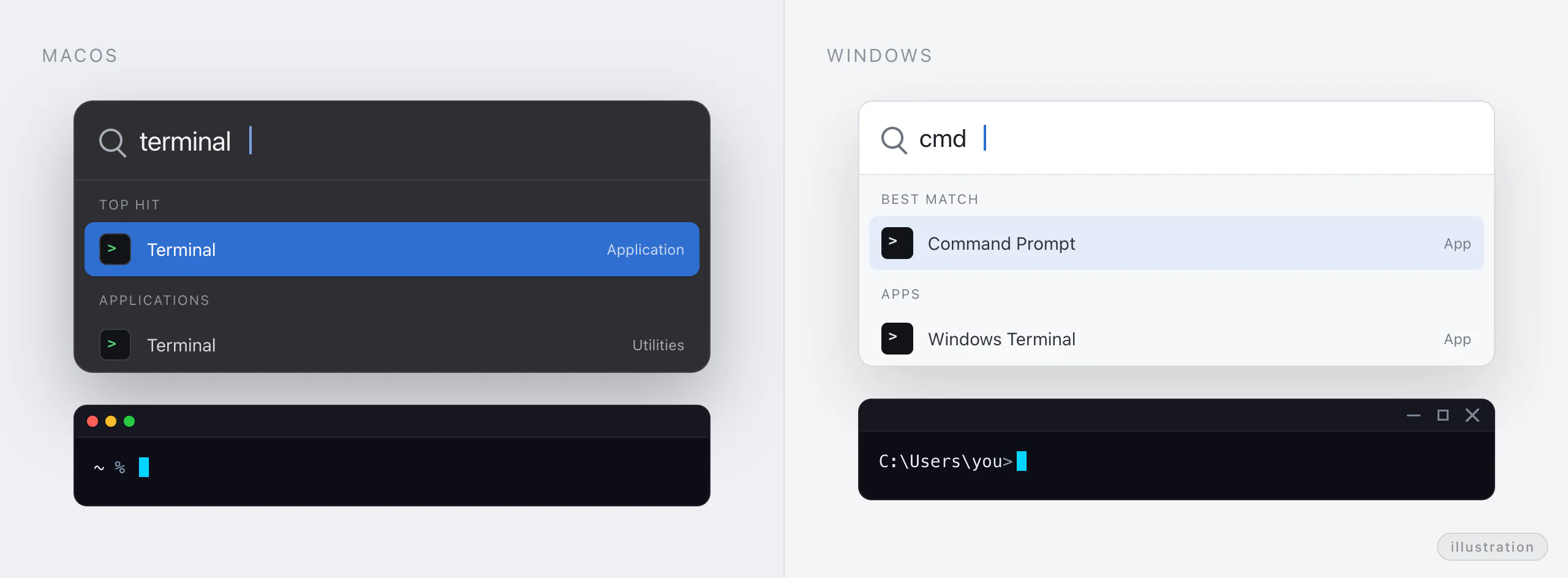
This step gets you the window everything else happens in. On a Mac, hold Command and press Space, type terminal, and press Enter. On Windows, press the Windows key, type cmd, and press Enter. It looks unfriendly and it is completely safe. Nothing runs until you press Enter.
 1234
1234- 1The search box, with the word typed into it.
- 2The app to open. Take the top result, not the second one.
- 3The empty line you land on, blinking, waiting for you. That is all a terminal is.
- 4The same search on Windows, where the word to type is cmd.
Last login: ... on ttys000
~ %
On Windows the line ends with a > instead of a %. Both mean the same thing: your turn.
Run the install command
This step gets you the claude command itself. Paste the line below, press Enter, and let the text scroll past until it stops. That scrolling is normal.
npm1 install -g2 @anthropic-ai/claude-code3
- 1the installer
- 2every folder, not one
- 3the tool itself
npm install -g @anthropic-ai/claude-code
added 1 package in 12s

1 package is looking for funding
  run `npm fund` for details
Your package count and your seconds will be different. A line that starts with the word added means it worked.
You should now have the claude command on your computer, and the terminal is back to a plain prompt.
If not: If it ended in red text about permissions, the kind that says npm ERR! code EACCES, paste the whole error into the Claude app and say which computer you are on. Unsticking your terminal is a good use of chat Claude.
Point the terminal at a folder
This step decides which folder Claude Code is allowed to see. Make an empty folder on your Desktop called my-project, the normal way you make folders. Then run the line below, which walks the terminal into it. On a Mac, type cd and a space, then drag the folder onto the terminal window. It fills in the rest for you.
cd ~/Desktop/my-project
my-project %
The word before the % is the folder you are standing in now. On Windows the line reads C:\Users\you\Desktop\my-project> instead.
Start the session and sign in
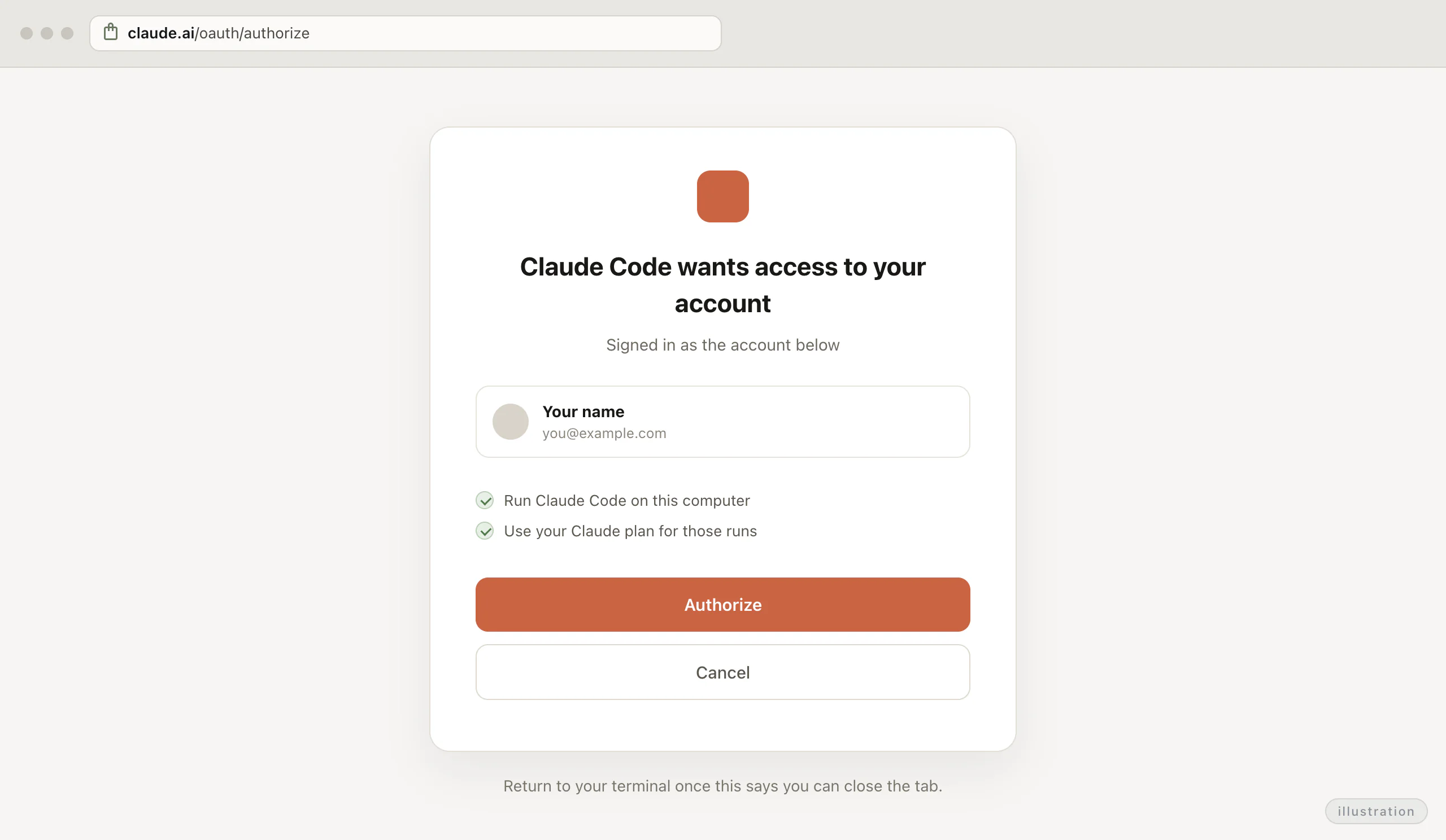
This step gets you a Claude that is already looking at your folder. Type the command below. The first time, it offers to log you in. Your browser opens and you approve with the account you already made. Then you come back to the terminal.
claude
 1234
1234- 1The address. Check that it starts with claude.ai before you click anything.
- 2The account shown. It must be the one you made in the last lesson.
- 3The Authorize button. One click, and this page is done with you.
- 4The line telling you to go back to your terminal, which is where the work happens.
You should now have a cursor blinking in the terminal, with Claude Code waiting inside your my-project folder.
If not: If the browser showed the wrong account, sign out there, run claude again, and approve with the account you made in the last lesson.
Make me a single page website that shows today's date and one random encouraging sentence…
Build something real
This step gets you a file you can double click. Ask for one small finished thing rather than one big vague thing. Claude Code tells you its plan and asks permission before it writes anything. Then it makes the files and tells you how to open the result.
- Build me a website
- Nothing you can point at yet
- Twenty questions before anything happens
- One page with today's date and one sentence
- Three files in your folder
- Something you can open in a browser
Make me a single page website that shows today's date and one random encouraging sentence, and tell me how to open it in my browser. Explain each file in one line before you create it.
You should now have files in my-project, and one of them opens in your browser and shows today's date.
If not: If you cannot find them, ask in the same session: tell me the exact folder you wrote those files into.

Read the permission prompt
This step is the habit the rest of the track leans on. Before Claude Code writes or changes anything, it stops and asks. That question is the permission prompt (your yes or no, one file at a time), and it looks like Create file index.html?. Read the file name in it, then answer.
Approving on reflex is the habit that eventually deletes something you wanted. Build the other habit now, while the stakes are a practice page.
Use cases
The move is the same in all three. Put the files in one folder, open Claude Code inside that folder, then ask.
- In: a folder holding prices.xlsx
- Out: a price list she can print
- In: a folder of forty lecture notes
- Out: one index saying what each covers
- In: an empty folder for a new client
- Out: brief, checklist, invoice, notes
The folder you open Claude Code in is the folder it can see. Get that right before you ask for anything.
Kaew keeps her prices in one messy spreadsheet and redoes the printed sign by hand whenever something changes. She drops the file in a folder, opens Claude Code there, and asks for a printable page built from it. Now a price change is one edit and one print, and she never had to learn a design tool.
There's a spreadsheet of my products and prices in this folder. Turn it into a clean one page price list I can print, and tell me how to update it when prices change.
Bank has forty lecture files and no memory of what is in most of them. He asks Claude Code to read the folder and write one index file saying what each note covers in a single line. Before an exam he finds the right file in seconds, for the price of one prompt.
Read every note file in this folder and create one index file listing each one with a single line saying what it covers. Don't change the original files.
Nara starts every client the same way: a folder, a brief, an invoice, a checklist. She asks Claude Code to build that starter set once, then copies it for each new client. The boring twenty minutes at the start of a job is now ten seconds, and she improves the template as she goes.
Every new client needs the same four files: a brief, a checklist, an invoice draft, and a notes file. Build me that starter folder and explain what's in each file in one line.
Try it
Each level lets Claude Code touch more of your computer than the level before it.
Look at the files in this folder and describe what's here in plain language, as if I've never seen it before.
Build me a simple expense tracker I can open in my browser. I type an amount and a label, it saves them, it shows a running total. Keep it to one file.
I have a folder of photos with messy names. Write something that renames them by the date each photo was taken. Show me exactly what it would do before it touches anything, and wait for me to confirm.
This one renames real photos, and a rename you did not read is work you cannot get back. The prompt already asks to see the plan first, so keep that sentence in it.
What's next
Right now you re-explain your preferences at the start of every session. Day one you type them, day two you type them again, day three you are still typing them. Skills fix that: instructions you write or install once, which Claude Code picks up on its own whenever they are relevant. That is the next lesson, and it takes about ten minutes.
npm install -g @anthropic-ai/claude-code